UPDATE: Samsung’s released Windows 7 drivers. You can find them here: http://www.samsung.com/us/support/downloads/ML-1210 or for the direct link here: http://downloadcenter.samsung.com/content/DR/200910/20091020193406500/ML-1200_Win7.exe (thanks to Paul and Keith for the links in the comments below).
(Previous Guide)
So… Install Windows 7, hook up the Samsung ML-1210 printer, and…
…well not much happens. If you’ve gone to Samsung’s site, you may have found 2 possible files to download (technically more, but only 2 that have any hope of working), and you’ll find that neither seems to work well.
The Universal Print Driver will install, and you’ll probably get it to even find your ML-1210 eventually. If you get farther than that, congratulations! You’ll have gone farther than I was able to with that package.
The GDI driver on the other hand will refuse to install. Windows will pop up and ask if you want to try compatibility mode. Unfortunately, it’ll still refuse.
The solution?
No, it’s not a Lexmark E210 driver this time (I tried it… no such luck).
The solution is simple, but not elegant.
1) Download the GDI driver install package from Samsung’s site. If you’re lazy, I’ve uploaded it here:
20070128180408375_ML-1200_GDI_Vista.exe
Or zipped in case you have problems with the above (make sure you unzip before continuing):
20070128180408375_ML-1200_GDI_Vista.zip
2) Right-click on the file, choose Properties.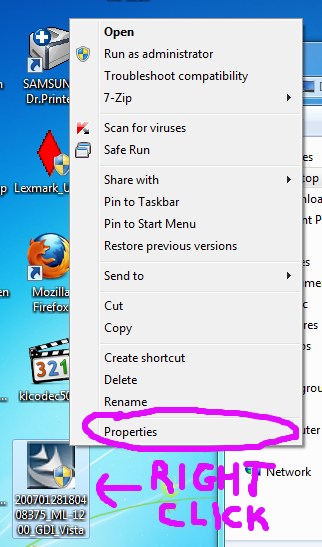
3) Run in Compatibility Mode for WINDOWS VISTA. Also check RUN AS ADMINISTRATOR. Click OK once you’ve selected those.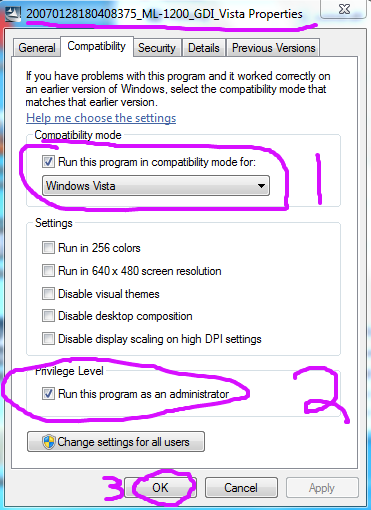
4) Run the program. It should install without warnings now (and let you print a test page).
One issue is that you’ll end up with 2 copies of the Printer in the “Devices and Printers” control panel. The first is the original non-working one, and the second is the new working one. It’s kinda ugly, making this an ugly solution for now, but it works.
At the very least you should have your ML-1210 up and running with Windows 7. Hopefully Samsung eventually spits out a proper Windows 7 driver package, but we’ll have to wait and see.
Note that this was done using the 64-bit version of Windows 7. I’d be surprised if the 32-bit version went any differently though, so instructions should be the same.
Now you have all the print drivers. Simply update the drivers with the ones extracted. It has both 32 and 64 bit drivers.
I found it worked for me by installing the GDI driver locally first on Win 7, by running the GDI exe file downloaded from your link, and telling the install program that the printer was not connected but to go ahead anyway. (It would have been too inconvenient to move the printer over and connect it directly on USB.)
Then I was able to Add a Printer - Network Printer - Browse for printer, select the Samsung on the XP machine, and the rest was automatic. I could then delete the originally installed local printer (maybe it will come back after a reboot!)
I'm now wondering if I shouldn't delete the local printer on Windows 7 as the previous poster - then again, it doesn't cause a problem other than the apparent inelegant appearance in the display.
I am not 100% sure just how I managed to get my home network originally connected together and getting the printer to work (had some phone help at the time). I originally had my ML-1210 printer installed on my desktop pc running windows xp professional via usb port with no problems. I then got a Vista Home Premium Laptop and installed the printer to that machine using the driver 20070128180408375_ML-1200_GDI_Vista. Only thing was that I had to take the laptop into the printer every time I wanted to use the printer, plug it in and then I could print from the laptop. So I connected the 2 pc's using a home network so that I could share the printer and some folders between both pc's. I do recall that once the home network was set up I was told to go to the printers (in Vista) and delete / uninstall the samsung printer and then I connected/shared the samsung printer which is connected to the XP machine and it now shows up in the printers section as a shared printer and I can print.
However, I recently tried to print a document which was created using the landscape setup but when I click to the print preview (word 2003) it does not show the entire document and tells me that the margins are wrong and wants to reset the left margin to 2.67". If I select to ignore and print it prints in portrait mode (and cuts off part of the document).
Any suggestions on how that can be resolved?
Thanks again for the help. Thought I was gonna have to trade this ML-1210 for a free onion ring at Carl's Jr.
I followed the above to the letter twice (the second time after a complete uninstall of the printer) and when I do a test page the 1210 wakes up but won't print. The printer wakes up and tries top digest the data but nothing elose happens. Once after an install I rebooted the computer and a test page popped out. But never again.
On the printers and devices screen I show only one printer (it says ML 1200) and it has the nice gren alls ok check mark and toruble shooting it fins no problems.
Would it matter that I have another printer installed on this system?
Anyone have any ideas that might help? I feel like quite the idiot given everyone else got the install to work just fine.
Thanks for the help
THANK YOU! I'm so glad you have it here!!! (I just bought *2* toner cartridges! It would really suck to not be able to use them!!)
danke für den excellenten Tipp. Hab viel versucht, nichts hat geklappt. Du hast meinen Drucker ML-1210 gerettet.
Thanks a lot, best greetings
21.10.2010
http://www.samsung.com/us/support/downloads/ML-1210
Thank you for contacting Samsung Electronics.
We understand that you are unable to work with universal drivers, and would like to download the compatible
drivers for Windows 7 operating system for your ML-1210 printer.
We suggest you visit the link below to download the compatible printer drivers for your Windows 7 operating
system.
http://goo.gl/S7MLX
Original post + #11 and sorted on new HP win7 64bit machine :)
does not have compatibility mode. Win 7 Starter OS.
I am from iran.
thank you.
Thanks - Liz
Bye, Andrea from Italy
1) DO NOT use the Samsung Universal Printer Driver (ver. 20.66). It may work for newer Samsung models, but DOES NOT work with the older ML-1210. This is why people are running into problems. I believe Samsung mislabeled it as compatible for this printer —it is NOT.
2) The correct driver is Print Driver (ver.3.01) 9.6MB. Hook up your ML-1210 via the USB cable to your PC, turn on both our PC and printer, install the .exe file for this driver, and you're in business.
Thanks from Mexico!