Update (June 25 2012) – I have a more complete & updated version of this write-up now. It’s quite long, but you can find it here.
I wrote this up quite a while ago, and it’s been sitting as a draft since. I pulled information on each setting from a few different websites, and while I don’t have any “final results” to show you (and the write-up wasn’t quite completed), hopefully the information’s useful in helping you to better determine what each setting does (and how it will affect encode time and quality), and to come up with your own settings.
I’ve used Handbrake in the past to encode movies and various TV series from DVD source. Recently, I grabbed the latest version (0.9.3), and decided to encode a TV series from DVD.
In short, here’s what I’m looking to get from my encode:
-High quality, even if it takes a while to encode.
-File size of between 250-400mb for each 1-hour episode (about 42-44 mins).
Of course, the best way to see how well you’ve done is to find something to compare it to. Therefore, I grabbed a torrent of the same TV show, and aimed to create a better quality encode at a smaller file size.
Before dumping into the x264 settings, it’s worth noting that I used a 2-pass encode, and mixed the audio down to a 160kbps Dolby Surround encode.
Here’s a list of the x264 settings I chose in Handbrake, and why:
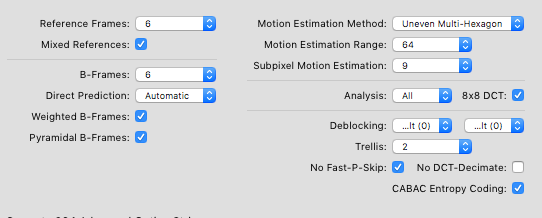
Reference Frames: 6
Normally, I’d go much higher here. However if you go too high, both hardware and *some* software players can choke. Unfortunately, reference frames are subject to diminishing returns. According to a document at mplayerhq.hu , while going from a setting of 1 to 2 would improve the signal-to-noise by 0.15dB, going from 6 to 12 would typically improve the signal-to-noise ratio by only 0.02dB but result in a 15-20% longer encoding time. Really high diminishing returns for something you probably won’t notice, and something that might cause issues if you ever try to play your video in a hardware player. That said, go crazy if you want and try 16. Just make sure your video plays fine afterwards.
Mixed References: Yes
You get some quality at the cost of some speed. I’ve never seen anyone give a good reason to turn it off.
B-Frames: 6
There’s another option called “adaptive b-frames” which is on by default (and there’s no setting to turn it off in Handbrake), so the encoder will use however many B-Frames it sees fit to use. Typically it won’t use more than 3 or 4. Feel free to pump this up to 16 if you want – it probably won’t make a lick of difference though unless for some reason it decides that more than 3-4 was needed.
Direct Prediction: Automatic
None is bad, and if you’re intent on choosing one, Spacial should be better than Temporal according to the documentation. Everyone seems to point at leaving this at Auto so the encoder can decide when to use what, and I’d tend to stick with that.
Weighted B-Frames: Yes
A fun bit from mplayerhq.hu – there’s often not a lot to gain from this except during fades where it’ll save some bitrate… except that apparently the “adaptive b-frames” that’s on by default tends to avoid b-frames during fades. So where it should help the most, it probably doesn’t. It can save some bitrate though anyway, and some people have noticed 1-2% larger file sizes without it (which means you should get an overall quality increase with a static file size in most cases, since I haven’t heard of any negative effects). It also doesn’t add much time to have enabled, so I’d leave it on. Should have a larger effect on film than it does on animation.
Pyramidal B-Frames: Yes
More quality, or a smaller bitrate. Adds time to the encode.
Motion Estimation Method: Uneven Multi-Hexagon (umh)
UMH will typically give the best quality. Exhaustive would take much longer, but probably wouldn’t give any benefit whatsoever.
Motion Estimation Range: 64
Higher is better, but takes longer to encode. More important for high-motion stuff.
Subpixel Motion Estimation: 9
Again, higher is better. Rather than just being “levels of quality”, each number turns on different features, or applies features to different/more frame types.
Analysis: All
About 10-15% longer encodes, about 0.1db improvement in signal to noise in high-motion stuff, and does almost nothing in low-motion stuff. Despite the rather small benefit, I use it anyway.
8×8 DCT: Yes
Simply adds another block size to the Analysis. If you have Analysis already set to “all”, you may as well choose this also.
Deblocking: 0 0
There’s no “best” setting for this, so the default is probably fine for most. The first number is “strength”, the second is “threshold”. Think of it this way – the first is how much to blur, and the second is more like “when” to blur. Negative numbers will blur less and give a sharper image. Positive numbers will give more blur. If you’ve chosen an insanely low bitrate/filesize, or if the image looks too sharp or quite blocky, you may want to increase the numbers slightly to add some blur to help cover up any artifacting/blocking. If you’ve gone with a healthy bitrate and your encode is more blurry than the source, you can try going into the minuses. It’s generally accepted that going beyond +/- 3 won’t be terribly good. Really, I’d leave it at 0/0 unless you’re unhappy with the result.
Trellis: 2
2 uses Trellis more often than 1, will take longer to encode, and may increase the quality a bit.
No Fast P-Skip: Yes
Selecting this makes it take a little longer to encode, but can reduce blockiness. Leave it checked.
No DCT-Decimate: No
DCT-Decimate is usually a good thing, so leave this box unselected. It saves space where it thinks you won’t notice, which means more space is there to increase quality elsewhere (where you will notice it).
CABAC Entropy Coding: Yes
Better compression at the same quality. No Fast P-Skip also needs this to work. Playback requires a more work though, so old computers and some hardware players may choke. Keep it enabled unless you’re going to play the video on something that can’t cope.
I'm very happy someone is telling me what settings to use. I'm looking for the same things as you:
-High quality, even if it takes a while to encode.
-File size of between 250-400mb for each 1-hour episde (about 42-44 mins).
Now I would like to try your settings. But I don't know how. The settings you write about seems to be under the "Advanced"-tab. But what about all the other settings?
What format? avi, mkv, mp4 etc.?
What framerate?
And what is your "Quality settings"?
Do you use any picture settings?
I don't even know what all these words means but I would appreciate if you could tell me how you use handbreak.
//Johan
The format is basically a "container". AVI and MP4 are the most commonly supported types, and I generally go with MP4 (the others are fine too, but some players won't play them).
For framerate, choose "Same as Source".
Under quality, type in a Target Size (so 350 for example if you want a 350mb file). Leave the other stuff alone - they're simply other methods you can use if you'd rather have a target bitrate or target quality (if you change them, it won't end up being a 350mb file). Since hard drives have become so cheap, I use 400mb a little more often now, but it's up to you - find something you're comfortable with. The higher the filesize, the more quality can be packed in.
For advanced encoding settings, use 2-pass. Very important, and it'll effect quality a fair bit. You may as well select Turbo First Pass as well (it'll encode a lot faster and the difference in quality is negligible)
I leave the picture settings alone. If the source is interlaced for some reason, you'll see really bad "jaggies" in your output video - if that happens you may need to choose a Deinterlace option. Usually it's not needed though, so just leave it be.
For the audio bitrate, use either AAC or MP3. You can drop the audio bitrate a little too (drop it to 128 instead of 160), and see if you notice the difference in sound. If you don't notice any difference, it'll save a little space there (which can be used for a little more video quality).
----
The quality of the encode will usually be much better than the one you downloaded - more sharp and crisp, and generally pretty close to the source DVD. However, many videos that you download are encoded with DivX or XviD which both give a very smooth picture (basically it's slightly blurred which makes it look smooth, and which some people prefer). The deblocking stuff mentioned in the article can mirror this to an extent.
If worse comes to worse, you can try using some of the built-in presets. They're usually pretty decent, although I prefer the manual settings.
Best of luck!
One question, when selecting Output Settings, I have been using the MKV format. Should I be using another setting?
Thanks...
The short answer would be that I'd probably tend to use MP4 (MPEG-4) instead of MKV (Matroska), for the simple reason that more players (hardware and software) support MP4. H.264 also happens to be part 10 of the MPEG-4 standard.
That said, if you've been using MKV, and it's playing on whatever video player you're using, there's certainly nothing wrong with the MKV container (it's a pretty flexible container actually and as an added bonus is an open standard), so feel free to keep using it.
The longer answer is that all the formats listed in Handbrake are basically just "containers" and for all intents and purposes just determine what sorta stuff you can put in them. For example, if you switch through the different formats available in HB, you might notice that different video & audio codecs become available to use. As long as you're using a container that lets you stick in H.264/x264 and the audio codec you're wanting to use, the quality of the encode should be exactly the same, so as long as whatever video player you're going to play the video on supports whatever container you decide to use, it really doesn't matter.
It might be worth taking a quick peak at the table located at http://en.wikipedia.org/wiki/Comparison_of_container_formats . It might help clear up some of the differences between each container.
What it really boils down to though is this:
1) Does the container let me put in the stuff I want?
2) Is the container supported by the player I'm trying to play it on?
If the answers to both those are yes, then whatever container you're looking at is probably just fine.
Hope this helps :)
Nice work!
Is there a way to configure Handbrake to get the video to "fit" my LCD TV? I am copying my DVD collection and want to view then on my 46" LCD. The LCD will "make the frame fit" but is there a way to make the convert size the video to the exact correct size?
THX, EB
I'm guessing you're meaning 1 of 2 things by "fit":
-Either you've got black bars on the top/bottom (or left/right), or;
-You've got the video showing in a small box (surrounded by black on every side)
If it's the bars:
-Cropping can chop off the edges of the video, so that when it fills the TV there aren't black bars. While it makes the video fill the screen, I'm not a big fan of this, because whatever was filmed in those edges isn't on the TV anymore. This should be doable in Handbrake.
If it's the video showing in a small box on the TV (surrounded by black on every side):
-You might be able to upscale the resolution in Handbrake, although I wouldn't recommend it because there are better ways of dealing with it. To do it, you'd find the resolution of your LCD TV, and encode the video to that resolution. For example, if your TV is 1080p, the resolution is 1920x1080. You'd plug those numbers into Handbrake. I haven't tried it though and I wouldn't want to. Because 1920x1080 is significantly larger than a DVD resolution (~720x480), your file will be significantly larger, to the point where it might be larger than the original DVD itself!
-The best option is to deal with it at the source which reads your files and outputs them to the TV. If you're using an HTPC to play the files (Windows Media Center, playing off your Mac, etc), your TV resolution should usually be detected correctly, but if it isn't you might have to change the resolution from within Windows/Mac. Alternately, if you're playing your ripped movies off of a DVD/CD in your player, there might be an option there to upscale to fit the TV, although it varies from manufacturer to manufacturer. You also want to make sure you're using a digital cable of some sort (DVI/HDMI cable for instance) regardless of the source - component outputs (RCA cables) aren't ideal for video because they won't tell the source&TV about each other (which can lead to the issues) and don't offer great video quality either, and standard VGA cables are getting to be a little passe (also not great for quality).
-Finally if nothing else works, doing it from the TV the way you've been doing it is probably your best option. Upscaling from Handbrake will result in massive video files, and the only other option if you're playing from a hardware player is to buy a new hardware player that scales it correctly to fit your screen.
Best of luck. Incidentally, the version of Handbrake I had used in the testing was 0.9.3. I'm currently using 0.9.4.
First of all, I assume an I frame, a keyframe and a reference frame are the same thing. If that is so, can you tell me what the number refers to in the reference frames settings? Because I'm looking for responsive cueing when doing RTSP streaming from a Darwin Streaming Server, I'm looking for 1 per second.
Thanks.
Not positive on this, but I believe reference frames refers to the number of reference frames that a B-frame is allowed to look at.
I'm running a 2.66ghz core 2 duo, which normally blazes through intensive tasks, but has finally met it's match.
Thanks!
I'm not sure why you've read that it's not wise to use AAC. From what I can tell, it's part of the MPEG4 standard. I'd be surprised if you came across a player that recognized the MKV format, but couldn't handle AAC. If you really don't want to use it, MP3 would be the other common option.
As far as the settings go, it's really going to depend a lot on what you're playing the thing through, the file size you're shooting for, the movie, etc.
For most stuff, I go with a 2-channel English source, AAC, Stereo mixdown, Auto samplerate (it'll probably end up being 44.1 or 48), and 160-192kbps. If you want to throw in other audio tracks (commentary, other languages, etc) you can add them in as additional sources (I usually go with a lower bitrate for commentary tracks if I add them). Note that every track you add increases the amount of the file devoted to audio (for instance, if the stereo audio makes up 40megs of the file, adding another stereo track of equal length at the same bitrate brings the total to 80megs). If you picked a target file size, that basically means the video will be a little worse for each audio track you added. If you went with a certain quality % instead, the file will simply be bigger.
If you're encoding stuff to put on a media center PC though (being spit through a home theater system), or want the audio pretty much untouched, you might want to look at some of the "passthrough" options. This gets a little more complicated (can start moving the decoding to your receiver) and results in larger file sizes. I've gone that way for a couple encodes but realized that once I start getting that particular about keeping quality perfect, I may as well just rip the whole DVD to the hard drive or just put the darn thing in when I want to watch it.
I've been using Handbrake for quite some time now and I'm really pleased, although there are some things that certainly could need some improvements.
Here are some good encoding settings I've used for my really small rips. These rips are re-compressions of 720p x264 mid-quality rips which I downloaded. Each video is roughly 41min long and I've used a size of 450mb which gives perfect quality, although the source itself isn't perfectly clean. 450mb / 41min is approximately 1500kbit/s, that's 30% of the size used in normal 720p rips found on the internet.
http://tinyurl.com/3qyrywv
Movies like The King's Speech look great with even less size. I got an 852kbit/s rip with 3 ref frames, me=hex, subme=7 and fast-pskip=1, but it looks perfect. Using higher settings should allow even lower bitrates, I think around 700kbit/s for low-motion movies like The King's Speech.
If the link isn't working:
Reference frames: 9
B-Frames: 12
CABAC: 1
8x8 Transform: 1
Weighted P-Frames: 1
Pyramidal B-Frames: Default (Normal)
Adaptive B-Frames: Optimal
Adaptive Direct Mode: Automatic
Motion Estimation Method: Uneven Multi-Hexagon
Subpixel ME & Mode Decision: 10: QPRD in all frames (requires trellis: always)
Motion Estimation Range: 64
Adaptive Quantization Strength: 0.6
Psychovisual Rate Distortion: 1 (Default)
Psychovisual Trellis: 0
Partition Type: All
Trellis: Always
Deblocking: A: -3 B: -2 (depends on source and preference. I like less blurred and a bit more noisy pictures)
Regards, Jari666
Thanks much
If HD space isn't an issue, I'd be inclined to be conservative with the settings (maybe even leave most at default values), and just crank up the quality setting a fair bit (under "constant quality").
Few reasons for this - first, once you start getting into large file sizes (higher bit-rates), it starts to get hard to distinguish the copy from the source material. You don't need the fancy tricks the encoder pulls off, because it all just plain looks good. Second, once you're into high bit-rates, it becomes increasingly likely that a hardware player will start choking when subjected to things like a high reference frame setting. Third, if you've already got a high bit-rate (high quality setting), you probably don't need the encoder taking bits from scenes it doesn't think need them as much and reallocating them to other areas - you might notice the degradation where it took them away, and at the same time not notice the quality increase where it actually put them.
Regardless, play around a bit and do a few test samples. If you're not concerned about HD space, just keep cranking up the quality slider until you don't notice a difference from the source (and make sure the Roku handles it).
I've pored over the individual explanations of each x264 setting, but the settings are generally explained from the perspective of "here's how to increase compression while maintaining quality". What settings do I use if I want to limit compression?
For example, would I choose more or less REF frames and B-frames? Would I choose a higher or lower Motion Estimation? Or, would I just turn most settings off and use a constant quality of RF=10?
rc-lookahead=50:b-adapt=2:subq=9:trellis=1:ref=4:bframes=4:direct=auto
for fast movies (better for motion)
rc-lookahead=50:b-adapt=2:subq=9:trellis=1:ref=4:bframes=4:direct=auto:analyse=all
for sports (better for motion & more sharp):
rc-lookahead=50:b-adapt=2:subq=9:trellis=1:ref=4:bframes=4:direct=auto:analyse=all:deblock=-1,0
rc-lookahead=50:b-adapt=2:subq=9:trellis=1:ref=4:bframes=4:direct=auto:me=umh:merange=16:analyse=some
•for fast movies (better for motion)
rc-lookahead=50:b-adapt=2:subq=9:trellis=1:ref=4:bframes=4:direct=auto:me=umh:merange=16:analyse=all
•for sports (better for motion & more sharp):
rc-lookahead=50:b-adapt=2:subq=9:trellis=1:ref=4:bframes=4:direct=auto:me=umh:merange=16:analyse=all:deblock=-1,0
source: http://img12.imageshack.us/img12/9383/sources.png
sample: http://img401.imageshack.us/img401/9610/sampleyn.png
I think you start to hit dimisnishing returns at QF16.
A quick question: I always use two-pass encoding with a 'turbo' first pass, to give x.264 the best chance of allocating bitrate appropriately. I'm quite ok with the inevitable variation in final filesize but what, in your opinion, is the best average bitrate for a good quality encode? (Bearing in mind that this is very much subject to perception and quality/type of source material). I am looking to encode a large number of music video DVDrips, and i'm thinking around about 1500kbps would be acceptable. I'd appreciate your thoughts on the matter. Cheers.
As you suggested, the quality/type of source material does come into effect. That actually makes it really hard to target a bitrate to apply to multiple sources. With some sources (especially "clean" ones), 1500kbps might be wasting bits. With other less-ideal sources (especially noisy ones), 1500kbps might just be adequate (or maybe not enough!). It's easy to have one encode look great, and another come out looking terrible.
Thus, you might find that using the "Constant Quality" setting works better. x264 will try to target a consistent quality (targetted by the RF value you've chosen) and use more/less bits where needed to achieve that quality. By the end, you'll get what amounts to a different "average bit rate" for each source, but visually they should look pretty consistent. Constant Quality has generally become the preferred method of encoding in the majority of cases. It's easier, and often wiser to tell the encoder what quality you're looking for, and let it figure out the bitrate needed to do that on it's own.
At some point I need to do a new write-up (much is out of date and this one was never complete), but do some playing with the Constant Quality setting (if you've never used it, do a test on a source at an RF of 16, 20, 24 to see the differences) and see how it works for you. Note that lower values are higher quality and will have larger file-sizes than those done at higher RF values.
ref=16:subq=9:rc-lookahead=60:trellis=2:deblock=1,1:bframes=5:direct=3:spatial=1:psy-rd=0.40,0.00:b-adapt=2:b-pyramid=2:strict=1:8x8dct=1:me=umh:cabac=1:merange=60:nr=1000:decimate=1:keyint=240:keyint_min=24:crf=27.0:qcomp=0.60:qpmin=3:qpmax=69:qpstep=4:ip_ratio=1.40:aq=1:0.60:threads=12
I am a new user of Handbrake.
Is it possible to muxe 2 of several videos files (without audio :video1+video2+...)
and an audio file (mp3 or else) for the entire muxing of video files ?
Thanks
No, not in Handbrake. A standalone video editing program is usually the easiest way to do so. If your source videos are in MKV (which not all video editors support), something like MKVToolNix can work for basic muxing too.
But there is one thing that i would like to ask to regarding to the Handbrake.
For example:
we have a MKV/MP4/AVI file from someone, but it size was more than 1-GB
due to our HDD size limitation, in order to collect the file, we are required to reduce the size by reducing the bitrate,
1. how can we know the origin MKV/MP4/AVI bitrate?
2. how to make Handbrake to maintain the origin bitrate?
Thank you
Your best bet is probably to use a bitrate calculator like the one at https://3ivx.com/support/calculator/index.html . Put in:
- your desired filesize (since 1GB is too large for you, you'll have to decide what's reasonable)
- the audio bitrate you'll be using (likely 128kbps or 160kbps)
- ...and the length of the video
It'll spit out a video bitrate. Plug that into handbrake using the "Average Bitrate" section, and encode! You should get something near the filesize you put into the calculator.