Update: If using Yosemite, Bernard was kind enough to provide some changes and additional required steps in the comments – you should take a gander through there before jumping back to the top to read the original process (click here to jump to the comment).
When you can’t count on HP, the Linux community is fortunately there for us Mac users.
No, there are no “HP Certified” drivers. Yes, there are Mac ones.
I pulled the information from a thread here. Thanks goes out to craigverse for the info.
Before going any further, Leopard users seem to have a very high success rate using the 1st package listed (the drivers I used). Snow Leopard users however have been met with very mixed results – some get it working, and others don’t. If you try and it doesn’t work, there are many possible side-effects: you may end up with printers permanently listed that don’t work, you may have conflicts with other installed printers, and there could be other issues.
First of all, you’ve got to download 3 programs. You can find them at http://www.linuxfoundation.org/en/OpenPrinting/MacOSX/hpijs. The ones you’re looking for are foo2jzs, Foomatic-RIP, and gplgs (choose the gplgs that corresponds whatever verson of OS X you happen to have).
If you’re a little lazy, I’ve zipped all 3 and uploaded them here:
MacOSX_HP_Color_LaserJet_1600_drivers.zip (drivers I used)
MacOSX_HP_Color_LaserJet_1600_drivers_new.zip (new drivers with SL support – not tested)
To install, do it in this order (I bolded the important parts of the names in case you download slightly newer versions):
- Install gplgs-8.63-ub.dmg
- Install foomatic-rip-2008-01-30.dmg
- Install foo2zjs-1.1.2-ub.dmg Note that the one I included in the package is for OSX 10.3, 10.4, and 10.5 (also 10.6 for the new package but read below first). If you’re using 10.2 you’ll want to download the 10.2 files instead. It’s worth noting there’s a terminal/text part of the install you’ll have to answer questions in (for me #2 was the LaserJet 1600).
–
Note that for Snow Leopard (the 2nd package), hpijs is there in place of foo2zjs and it’s not listed as supporting the 1600 – some seem to have success while many do not – you may want to read through a few comments and see. Alternately you may want to try foo2hp instead although this has NOT BEEN TESTED.
– - Once installed, go to System Preferences, Printers, and add the printer – a driver should now be showing up similar to this:
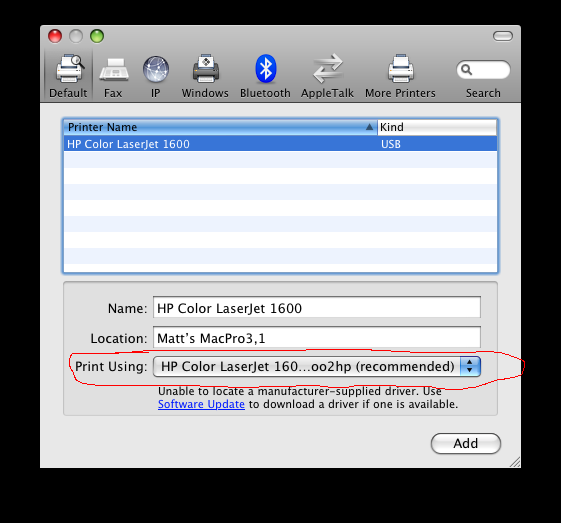
- Once that’s done, type the following in your browser (or you can click the link):
http://localhost:631/
and press enter. This will open up a printer configuration page. - Go to:
Manage Printers
Set Printer Options
Color Mode: CHANGE TO COLOR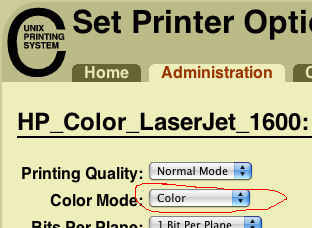


If do skip steps #5 and #6, the printer will only print in black and white.
You may want to print a test page to ensure it’s working properly:
Home
Manage Printers
Print Test Page
That’s it! You should be good to go!
EDIT: Quite a few people have posted with issues logging in to the printer configuration page (Step 5). Here are a few steps to try. Please report back if you find them working (since I didn’t have issues, I can’t test it myself).
- Try using your normal login username/password. Probably won’t work, but give it a try anyway.
- Try the username “root” (no quotes) along with your password. Try “root” and no password. Again, probably won’t work, but try it again anyway.
- It’s very possible the “root” account isn’t enabled on your system. Read http://support.apple.com/kb/HT1528 on Apple’s site for instructions on how to enable the root account (listed under the How to enable the root user section of that page). It’s 6 steps for Mac OS 10.5 (earlier versions are 12 steps). Once you’ve enabled the root account, try logging into http://localhost:631/ again using “root” as the username (no quotes), and the password you created for the root account.
Step 3 should work, but since I’m not able to try it, I can’t say for sure. There’s no harm in enabling the root account, although you may want to disable it once you’ve adjusted the settings for security purposes (instructions to disable it again are on the same Apple support page).
Please leave a comment if you ran into the password issue, and whether or not the instructions in the follow-up solved it. Thanks.
Is there an alternative default password for the CUPS interface?
You now the Pass to locslhost:631 and cups???
Just tried it here, and it did not ask me for a username/password. According to the page that comes up though, it says the following:
"If you are asked for a username and password, enter your login username and password or the 'root' username and password."
If you have different accounts on the machine, try the name/password of an administrative one. If all else fails, try using "root" for the username, and using your regular login password.
Thank you SOOoooo much for this information. I have looked all over the web and you are the only sane person on it who has actually taken the trouble and time to write point by point instructions on how to get this printer working - I am very grateful to you. I bought one of these as an 'end of line' at Staples for £26, yeah I know a bargain.....and if it killed me I was gonna find a way of getting the bugger to work on my Mac running 10.5.6
I had discovered foo2hp.rkkda.com - then of course when it comes to applying any of their clever work - well lets just say that they can't teach - idiots......it may as well have been in Russian.
Thank you once again.
Best
Paul
EDIT: the post has been updated. Read the bottom section of the post.
I really appreciate you taking the time to do this writeup!!!
Jonathan: I've only installed the drivers here for the LaserJet 1600 (not the C8180), and it probably would have been better for you to simply install HP's drivers for the C8180 rather than these (you mentioned it's mac-compatible so I'm assuming HP provides drivers). In any case, you can try grabbing the correct drivers for the C8180 from HP's website and installing them - hopefully they'll take over and clear up the issues. I'm not sure how to UN-install the drivers. A recent storm brought some lightning that fried all the computers here so there's no way for me to trial/error anything. You could try running the .DMG files again - sometimes an uninstall is included with the installer, and it might trigger uninstallation options. Alternately, take a peak at the ZIP and see if any README's are included with uninstallation instructions. You could also see if any printer-related stuff was thrown in Applications, but again with the computer being toast these are just guesses. Perhaps someone else has uninstalled them and will post instructions. Best of luck!
Please give me advise on what to do and why I can't print in color, even when I'm able to change the printer options successfully.
- Make sure you did install all 3 packages (I'd imagine missing one could get it *kinda* working, but I'm not positive). Make sure you got them all installed.
- Try another USB cable. In the past I've had some USB cables that wouldn't work properly with some printers (or dumped the connection down to USB 1 instead of USB 2). Since color mode is presumably dumping a lot more information to the printer, you could have a cable that's not reliably supplying a solid signal/speed. Now, don't go spending a fortune on another cable in case this isn't the issue, but if you've got other cables (for other printers, etc) lying around, it may be worth giving them a try. You could also try another USB port on the computer - I've had some flaky ones in the past.
- If you've got access to a Windows machine, HP has firmware listed amongst their Windows drivers on their site (although it's from 2007). Not sure if a firmware upgrade might help or not (since I'm not sure what all they changed/fixed), but you could consider flashing the printer's firmware to see. A small warning though - if something bad happens during a firmware flash (a crash, power outage, or sometimes just bad luck), a firmware flash that fails mid-way through can render your printer unusable.
- Best option - check back in a little while. Hopefully if someone was in the same situation and figured out what exactly fixed it, they'll leave a comment to help you out :)
Colin: Very good question. I haven't tried the printer with Snow Leopard. I did buy SL for my brother who's on a MacBook, so next time he brings it by I'll try hooking it up to the printer to find out. Apple did throw a pile of drivers on the Snow Leopard install DVD (you can choose 3 different options when installing for various levels of printer support in the "Customize" section), although the 1600 isn't listed on HP's Snow Leopard compatibility list. Might get lucky and maybe one of the working drivers included does work.I'll take a peak when I can and see if either the included drivers, or the drivers I wrote about in the post work.
Paul
That's awesome news! Thanks Paul! And by the way, a big thankyou to Matt for posting spot-on instructions, and the drivers as well. They are difficult to find elsewhere now.
Anyone can help? Thanks.
I open http://Localhost:631 window to change the Color mode from Monochrome to Color then press Set printer options. In the following window I type my Username and Password. A New Window appeared -- Printer HP_Color_LaserJet_1600 has been configured successfully -- and immediately after a Safari Window appeared -- Safari can’t connect to the server, Safari can’t open the page http://Localhost:631/printers/HP_Color_LaserJet_1600 because Safari can’t connect to the server Localhost --
I call Apple and they can’t help me since it isn’t their software. Maybe you could help me ?
At least , I am able to use the printer in monochrome, we made some progress.
If you've got another web browser installed (Firefox and Chrome are good free popular ones), you can try through one of those instead of Safari.
Otherwise, if still using Safari, try logging in again through http://localhost:631/ and if it throws the same message, manually go to http://localhost:631/printers/HP_Color_LaserJet_1600 . I'm thinking that Safari butchered the localhost port. If you type the url and it gives the same message about not being able to connect to the server localhost, you could also try http://127.0.0.1:631/printers/HP_Color_LaserJet_1600 .
Angie, I've had the exact same problem under Snow Leopard. In the CUPS-interface, where you set the mode to color, I've also set the "bits per plane" to "2 bits per plane". This has resolved the issue for me.
Note that I have NOT tested the new drivers - hopefully they work. If anyone has problems please leave a comment.
Thanks so much. Your solution also resolved this issue for me. I use HP LaserJet 1600 and Snow Leopard.
1. gplgs-8.63-ub.dmg
2. foomatic-rip-2008-01-30.dmg
from MacOSX_HP_Color_LaserJet_1600_drivers_new.zip
then I installed
3. foo2zjs-1.1.2-ub.dmg
from the old
MacOSX_HP_Color_LaserJet_1600_drivers.zip
Now I managed to select the printer from the list and get the printer working. BUT it can print 'black and white' only.
Still no color printing yet.
Thanks.
Dear Thiemo, I tried your solution to setup the printer.
Yes, it can print in color now. However, there are two problems happened again.
1) The color is not the exact color what show in the file.
2) Some part of the file cannot be printed.
Can you help us further? Can you tell me what the meaning of “bits per plane” and “2 bits per plane”?
Thank you so much for supply us the driver of HP color Laserjet 1600.
I used the "old driver" in Leopard to print in color very well. However, when I update to SL, it cannot work more.
Actually, I can print the color with Safari and Preview, but cannot print the color with Iwork 09. I can only print B/W, not color. It is very strange.
I tried the solution which Thiemo (#27) said, change it from “bits per plane” to “2 bits per plane”. It can print in color. However, it has a very serious Color Distortion. And also, it seems cannot print the whole pages well.
So I delete the "old version" and re-install the "new version". Unfortunately, it can only print in B/W, even in Safari. I changed from to “2 bits per plane”, the same problem happened. There is a very serious color distortion.
Can you help me??
Best regards.
I wasn't talking about your drivers for the c8180 I just want to know how do I turn off the settings from the drivers on this web site. Because of the drivers I installed from this web site any time I print with ANY other printer I can only print one copy at a time. Like I said before and you didn't understand me, I just have to get rid of your drivers from my system to be able to use the regular computer drivers to use my printers normally without having to use the damn CUPS program
The "2 bits per plane" setting that Theimo and others mentioned have been met with varying degrees of success as far as getting color working goes. It may be worth a try.
Gui:
I never had the chance to try the drivers with Snow Leopard, so I'm not sure why the color distortion's occuring. Hopefully someone else sees your message who has had the same issue and been able to fix it (hopefully it's just a setting that needs to be changed).
Jonathan:
Unfortunately, I'm not sure how to uninstall the drivers in the driver package (including the CUPS program, etc). Hopefully if someone knows of an easy way of doing this they'll leave a comment though.
# All administration operations require an administrator to authenticate...
AuthType Default
Require user @SYSTEM
Order deny,allow
This limits modifying printer settings to anyone in the "SYSTEM" group... which doesn't exist on my Mac (at least not in /etc/group). If you are an adminitrative user on a Mac, you will belong to the admin group and most likely the lpadmin group, so you need to add those into this section of the file to be able to save your new printer default settings.
So I fixed this issue simply by editing this file (sudo vi /etc/cups/cupsd.conf) to change the line:
Require user @SYSTEM
to:
Require user @SYSTEM @admin @lpadmin
Then restarted cups with:
sudo launchctl unload /System/Library/LaunchDaemons/org.cups.cupsd.plist
sudo launchctl load /System/Library/LaunchDaemons/org.cups.cupsd.plist
Went back into the local cups page in Safari and was able to save my changes. Still not printing in color though... any color jobs sent to the printer show up in the print queue, but the printer itself ignores them. This may be because I'm going through a print server (that also does not support the HP CL 1600), instead of USB.
First of all thanks for your detailed information. I'd tried to get the printer running on those drivers before but never got anywhere 'cause the information was always incomplete.
My macbook and imac both reacted differently to me installing the drivers.
On my macbook with OS X I changed the settings to colour, but my username and password were only accepted after having logged out as me (shut down the system) and logged in as root (after having enabled root). But then it didn't print, I had the same problem that Angie stated in thread #18. After I'd changed the setting to 2bit, it did print and in colour, but totally distorted as Gui said in #34.
My brand new imac with OS X Snow Leopard didn't accept name and password at all - until I'd installed the new drivers. Now, even with the setting to colour, it only prints in black and white.
I am about to give up on this and try to run the printer on crossover if that's possible at all (don't have any experience with it as yet though), but first I'll install the drivers that's on the installation DVD, as you suggested. I'd hate to have to give away my printer..
Ruth
Finally my Mac is printing on my HP Color LJ 1600. Thanks so much ;o)
Regards
Jeppe
Thanks for the help thus far... here is my problem, i am running leopard and when i print in color it looks awful... nothing like printing with my PC
any ideas?
thank you
mikey
I got the printer up and printing in B&W. I had the same issues mentioned by a few above, where I can't change the default printer settings in CUPS. Have used the new driver package for SL and even after enabling the root password, it won't allow the change.
If anyone has any other ideas please let me know. Appreciate the help so far - at least I have a B&W laser now.
Thanks
1st I installed the updated drivers for SL.
Then I updated the printer settings in CUPS - at 1st I couldn't get the changes authenticated, so I enabled the root password as described above. After enabling root, I had to:
- restart my machine
- then log on as root
- then make the changes to the settings
- then log back on with my own ID
Note that I had to set the Bits per plane to 2 to get it to print in colour.
I hope this helps someone, the way all the info above helped me.
Thanks a lot :-)
Andy
I'm having the same problems. 2 bits per plane makes it print in colour, but it's half black and white and it looks terrible. Any more suggestions?
Thanks,
Debora
Thanks so much. Finally i can connect with my office printer and print. Just one more problem left, print in color. Anyone have an update on how this issue resolved ? 2 bits per plane can make me print in color, but the color was awful. Really hope anyone can help with this issue.
I have exactly same problem as Angie B
They seem to keep changing things on that site (few months back they moved the page and made changes, and now by the looks of it some more has changed).
The foo2jzs was in the original package, and hpijs in the newer snow leopard package (although they don't seem to be listing support for the 1600 anymore).
All I could come up with was a driver now at http://openprinting.org/show_printer.cgi?recnum=HP-Color_LaserJet_1600 . It's also got a link to a foo2hp driver (perhaps the successor to foo2jzs) so it could be worth a shot. Unfortunately the foo2hp site ( http://foo2hp.rkkda.com/ ) is currently down, not that I'd have any way to test it at the moment - it's just making it that much more difficult to come up with any possible solutions.
I'll strikeout the link for now. Hopefully someone comes up with a new working solution with all the changes. The first thing I'd try would be using foo2hp instead of foo2jzs/hpijs, but keeping the rest the same. Of course this creates a headache if it *doesn't* work, but trial & error seems to be the only way to go right now unfortunately.
Thank you so much!
My issue is that when I change the color mode to Color in CUPS, nothing comes out on my printer. The process appears to be sending the file to print but nothing happens and the queue clears normally. If I change it back to Monochrome, it prints fines though not in color of course.
Can someone advise what I might be doing incorrectly or not doing at all?
BTW...I ran into the password issue on CUPS as well. Got that working by re-starting my system, changing the root password and returning to CUPS. The new password worked and I've been able to attempt the change to the printer's Default Settings...albeit unsuccessfully.
Thanx all. This has been a real challenge for me but the posts about this have been quite helpful ...bob
Thanx so much for the suggestion about changing the Bits per Plan value to 2. Worked like a charm. ...bob
I've installed the drivers, and it prints fine in B/W, but when I change from monocrome to color, by following http://localhost:631/ (I had no problem with the password), and then printing a testpage, nothing happens. It sends the dokument to the queue, and the job dissapears from the queue like it would normally do, the printer just doesn't react...
When I change back to B/W it prints again - but still just in B/W. How can I get my LaserJet1600 to print in colors?
Thank for helping so far!
Andrea.
I have exactly the same problem... Is this problem related to Snow Leopard?
Thanks for your support!
Stefanie
Regards!!
when I set the “bits per plane” to “2 bits per plane”, it prints with color but the color is not matching the original image?!.
Thanks,
Muyyed
I have a hp laserjet 1600 and I have downloaded the software. It works fine in B/W but when I go to the locahost:631 link it won't accept any of my passwords or root password etc. I have enabled the root user facility in my finder as the Apple site suggests but still not able to print in colour.
Any ideas??
Thanks.
Change to "2 bits" per plane, "1 bit" per plane will not works.
How do you change to "2 bits" per plane?
i followed the instructions
used the old "MacOSX_HP_Color_LaserJet_1600_drivers.zip" file
and it work like a charm
AGAIN READ ALL THE INSTRUCTIONS AND FOLLOW THEM!!!
NOTE:
the only thing i have to do is switch IN "printer features" to "colour printing" in the software you are printing from, NOT IN THE PRINTER PREFERENCES MENU
good luck and thanks a million
BTW- i found this printer in the garbage, it seems like somebody gave up trying to make it work
Only issue with the driver is that the print jobs are not disappearing from the queue after completing. This poses a problem since the LJ1600 is networked via a router and the router software releases the printer connection once the queue clears. Any thoughts on why this occurs? I looked on Bugzilla for similar Foomatic bugs but couldn't find any. This is on Snow Leopard. Thanks in advance!
Initial tests are good, and printer sharing and color printing appear to work great.
Thanks!
-- Castellan
I also had to set the same Color Mode and Bits Per Plane in my print dialog when I was printing to get it to go to color.
Thanks so much! You saved me from buying a new printer!
Set it up via USB and simply choose the driver
HP 2600 , 1.3.0.261 which was found in Drivers and was an installed driver
Not sure if it can with the MAC OS (I am using Snow Leopard) or was installed for the 2600 TN
Works perfectly well in Colour and also via an Airport Express
thanks all!!!
witch os of mac du you use is it working for osx 10.6.7 ?
/Volumes/Install foo2zjs/Helpers/Install_Printer_Extras.command: line 104: /usr/local/bin/getweb: Permission denied
Open to your thoughts
if you have the installation dvd of macosx you do not need to download xcode because it is on the dvd.
once you have done alle the steps of http://foo2zjs.rkkda.com/INSTALL.osx just go to http://localhost:631/ and set the printer to print in color.
if you have any question about http://foo2zjs.rkkda.com/INSTALL.osx you can go to the forum http://foo2zjs.rkkda.com/forum/
Jamie
Found I couldn't get around the login problems despite configuring the root user on and trying all the suggestions.
Ended up editing the HP_Color_LaserJet_1600.ppd file in /etc/cups/ppd (you have to do this as root or use sudo). Search for the appropriate defaults lines and change them. Works like a charm.
Well done.
Richard
Thank you!
Went into the localhost:163 and tried to change the color settings - the CUPS web page is completely different. Had to go to the 'Printers' tab, 'Maintenance' selector, 'Set Default Options' to get to the correct page. Got stuck again because the computer is asking for root access. After following the instructions for enabling the root account, was able to change the printer settings (2 bit plane color). Color printed but not great (colors are a bit off).
Just for an experiment, I went and changed the printer driver to HP LJ2600 (they are in the same family) and colour printing actually looks much closer to originals.
Checking back with the printer configuration, I now get a different printer page/options - but these are probably for the LJ 2600 specifically.
The colour output is much better, so I will stay with the LJ 2600 settings. Everything works great!
System Version:Mac OS X 10.6.8 (10K549)
Kernel Version:Darwin 10.8.0
I tried to install the printer again with the same procedure but without success...
Should I uninstall the components before reinstalling? I'm a rookie Mac user, and not a genius with these things (as you can see).
Any tips?
Tusen tack.
Thanks to everyone for there posts!
Thank you for all the info all worked so far but can't find anything to add in the print using:
section - I downloaded both old and new drivers.
Am i looking in the wrong place?
I am still new on a Mac and would really appreciate your help
Thank you
If you can't get it working, keep in mind that there have been a few people who haven't had luck either, so don't spend too much time on it if things don't look promising. It works for many, but certainly not for everyone's machine.
Best of luck!
Thank you for the feedback - last question i promise - i have now got to set 5 but the webpage
http://localhost:631/, seems to have expired any other page you can suggest?
Nadia
You could try http://127.0.0.1:631/ though to be honest, it shouldn't make a difference (both addresses point to the printer service on your own machine that one of the packages should have installed).
If steps #1-4 indeed worked, you should be able to print now though (however, you'll be limited to black & white until you get steps 5&6 working). So you might want to verify that #1-4 worked by trying to print something now (try a document, web-page, anything). If for whatever reason it didn't work, the service on localhost:631 (127.0.0.1:631) won't exist.
I should probably mention that if you're hitting a wall, a few others have mentioned that they had success with the driver for the HP LaserJet 2600 (it's supposed to be similar to the 1600). This is a bit of a shot-in-the-dark, but you could try choosing drivers for that model - I'm not sure if Mac OS X has those drivers built-in or not, but it could be worth trying. If they're built-in, you won't have to fiddle with packages and can instead just add/choose the 2600 and see if it works (if it does, great! if it doesn't, there's generally no harm in trying anyway). If 2600 drivers aren't built-in, HP did put out some Mac drivers for the 2600 at http://h20000.www2.hp.com/bizsupport/TechSupport/SoftwareIndex.jsp?lang=en&cc=us&prodNameId=446154&prodTypeId=18972&prodSeriesId=446153&swLang=8&taskId=135&swEnvOID=219 although they're quite old (then again, my write-up is pretty old now too!). Those could be worth trying. If those aren't successful either, you could always peek up at a few of the other comments and see if you can reproduce the steps others took to get their 1600 working with the 2600 drivers.
All that said, I should caution you that installing a zillion packages trying to get something working periodically results in all the things you've installed conflicting with each other and creating new problems. So while I hope something here helps you get that printer going, I'd urge you not to be overzealous in trying anything & everything. As I mentioned, sometimes you can do everything 100% correctly and the thing still doesn't work.
In any case, I wish you the best of luck.
One thing I had to do in the later steps (for those who are a bit less technical like I am) - after enabling the root account, I had to restart my computer, then change mode to color and 2-bit in the localhost, then restart again in order to print.
When I click the link it says web interface disabled. I used this driver for my previous computer and didn't have this problem. Any suggestions? Do you have another link that may work. Thanks a lot, help is greatly appreciated.
I have a working method for how to install the HP Color LaserJet 1600 drivers for Yosemite. The above way does work, but you need the latest foomatic-rip. So you have to download and install the following as the tutorial above instructs:
• gplgs-8.63-ub.dmg
• foomatic-rip-4.0.6.230.dmg *** NEW VERSION i.e. NOT foomatic-rip-2008-01-30.dmg (Download from here: http://www.linuxfoundation.org/collaborate/workgroups/openprinting/macosxfoomatic you will see the link: Foomatic-RIP 4.0.6 (668 KB))
• foo2zjs-1.1.2-ub.dmg
Now follow the rest of the tutorial above, add your printer either via USB or IP if you have a print server. (I have a TP-LINK USB PRINT SERVER TL-PS110U which allows me to put my 1600 on my local network at IP 192.168.1.10, works like a charm, check it out.)
Now, you are likely to get a filter failed error, or contact your printer manufacturer error when printing. The solution for me was to do the following as suggested by user "wue5" on http://www.mac-forums.com/forums/os-x-operating-system/316550-yosemite-printer-driver-broke.html:
• Open terminal then enter the following lines, 1 by 1, and press enter after each one:
cd /usr/libexec/cups/filter
sudo rm foomatic-rip
cd /usr/local/bin
sudo cp * /usr/libexec/cups/filter
Explanation of what the above code fixed: "The problem is simply the sandboxing of yosemite. The whole foomatic-software including hpijs and gostscript is normally installed in /usr/local/bin, where cups has no access in yosemite. I solved the problem by copying the whole content of /usr/local/bin into /usr/libexec/cups/filter. In this directory you must remove the link to foomatic-rip in /usr/local/bin before."
If after this, your printing does not work, just install foomatic-rip-4.0.6.230.dmg again.
Then try print again and see what happens.
I hope this helps someone.
Kind regards,
Bernard
I did have to use this instead: sudo cp -R .... to get the foo2zjs directory to transfer.
I also did: mv "foo2zjs 1" foo2zjs
Still getting "filter" failed.
Any idea what might be wrong?
D [14/Jun/2015:20:56:35 -0400] [Job 44] Starting process "renderer" (generation 2)
D [14/Jun/2015:20:56:35 -0400] [Job 44] JCL: %-12345X@PJL
D [14/Jun/2015:20:56:35 -0400] [Job 44]
D [14/Jun/2015:20:56:35 -0400] [Job 44] /usr/local/bin/foo2hp2600-wrapper: illegal option -- z
D [14/Jun/2015:20:56:35 -0400] [Job 44] renderer exited with status 1
D [14/Jun/2015:20:56:35 -0400] [Job 44] Possible error on renderer command line or PostScript error. Check options.DEBUG: Read 2849 bytes of print data...
D [14/Jun/2015:20:56:35 -0400] [Job 44] Closing renderer
to version, which has -z options:
VERSION='$Id: foo2hp2600-wrapper.in,v 1.77 2011/01/20 00:59:57 rick Exp $'
which I got the same error in http://127.0.0.1:631/admin/log/error_log:
D [14/Jun/2015:21:44:34 -0400] [Job 45] Starting renderer with command: "foo2hp2600-wrapper -z0 -b1 -c -p1 -m1 -s7 -d1 -Oy=0 -Om=0 -Oc=0 -n1 -Gdefault "
D [14/Jun/2015:21:44:34 -0400] [Job 45] Starting process "kid3" (generation 1)
D [14/Jun/2015:21:44:34 -0400] [Job 45] Starting process "kid4" (generation 2)
D [14/Jun/2015:21:44:34 -0400] [Job 45] Starting process "renderer" (generation 2)
D [14/Jun/2015:21:44:34 -0400] [Job 45] JCL: %-12345X@PJL
D [14/Jun/2015:21:44:34 -0400] [Job 45]
D [14/Jun/2015:21:44:34 -0400] [Job 45] /usr/local/bin/foo2hp2600-wrapper: illegal option -- z
D [14/Jun/2015:21:44:34 -0400] [Job 45] renderer exited with status 1
D [14/Jun/2015:21:44:34 -0400] [Job 45] Possible error on renderer command line or PostScript error. Check options.DEBUG: Read 2849 bytes of print data...
D [14/Jun/2015:21:44:34 -0400] [Job 45] Closing renderer
I figured I did so many installations, that there was a bunch of junk files, soI deleted everything, folders and directories in: /usr/libexec/cups/filter
I redid the installations described at the top plus what Bernard Myburgh said to address sandboxing. Then was getting "commandtops file not found" or similar error. commandtops is part of CUPS, which I couldn't find a way to reinstall.
So, I reinstalled Yosemite, and setup the printer for color. Now prints great.
I USED YOURS DRIVERS FOR MY HP COLORLASERJET 1600 BUT AFTER YOSEMITE THE PRINTER DOESN'T WORK THE ERROR IS : INTERRUPTED FILTER DOESN'T WORK CAN YOU HELP ME ? PLEASE
Currently, the Web interface is disabled. Run "cupsctl WebInterface = yes" to activate.
And i don't know how to do it, please help!